Introduction
Choosing the right laptop means finding one that can adapt to your needs over time. Opting for a laptop that can be upgraded ensures your device remains relevant as technology advances. This guide will explore the types of laptops you should consider, the benefits of upgrading, and practical tips on how to go about it. Whether you are a student, a professional, or a gamer, having an adaptable laptop saves you money and keeps your performance optimal.

Understanding Laptop Upgradability
A laptop’s potential for upgrades gives users the power to customize their devices according to personal needs.
Key Components That Are Typically Upgradable
The most common upgradable components include RAM and SSD. These parts directly influence your system’s speed and storage capacity, vital for effective multitasking and enhanced responsiveness. Investing in these upgrades can substantially boost performance without breaking the bank.
Benefits of Owning an Upgradable Laptop
An upgradable laptop is a cost-effective and environmentally friendly choice. It allows you to extend the lifespan of your device, improve its performance, and tailor it to your specific needs. Moreover, it adds value by enabling you to enhance productivity whether for work, gaming, or everyday use.
As you understand the importance of these upgrades, selecting the right laptop becomes easier. Now, let’s dive into the top models that offer these features in 2024.
Top Upgradable Laptops of 2024
In 2024, several laptops stand out for their ease of upgradability. Here’s a closer look at the models leading the pack:
Dell XPS Series
Known for their exceptional performance and sleek design, Dell XPS laptops are highly regarded for their upgradability. These laptops allow users to expand storage and enhance memory, providing a future-proof solution that retains its value.
Lenovo ThinkPad Series
Lenovo’s ThinkPad series offers robust features and durability, making them a preferred choice among business users. They’re designed with easy access to internal components, so users can effortlessly increase RAM and storage capacity.
HP Pavilion Series
HP Pavilion laptops offer affordability without compromising on upgrade potential. They cater well to both students and gamers, providing options to upgrade key components like RAM and SSD. HP also supplies comprehensive guides to aid users through the upgrade process.
With these models in mind, it’s crucial to approach the upgrade process with the right preparation. Let’s consider the factors you need to evaluate before starting an upgrade.
Factors to Consider Before Upgrading Your Laptop
Before diving into an upgrade, take time to consider several important factors to ensure a smooth process.
Compatibility Issues
Every laptop has specific requirements for compatible components. Ensure that any new parts align with your laptop’s specifications by consulting its manual or manufacturer. This step is crucial to avoid unnecessary hassles.
Tools and Skills Required
The process demands specific tools such as screwdrivers and anti-static wristbands to prevent damage to sensitive electronics. While some tasks like RAM upgrades are simple, others might require technical expertise.
Potential Costs
Although upgrading is usually more affordable than purchasing a new laptop, costs for parts and tools can add up. Calculate the total expense before proceeding to ensure it fits your budget. Compare this with the cost of a new laptop to determine the best path forward.
Once you’ve considered these factors and chosen to proceed with an upgrade, follow these steps for a seamless process.

How to Successfully Upgrade Your Laptop
Upgrading your laptop can be a rewarding process if you follow each step carefully. Here’s a quick walkthrough:
Upgrading RAM: Step-by-Step Guide
- Power down your laptop and remove the battery.
- Open the back panel using a screwdriver.
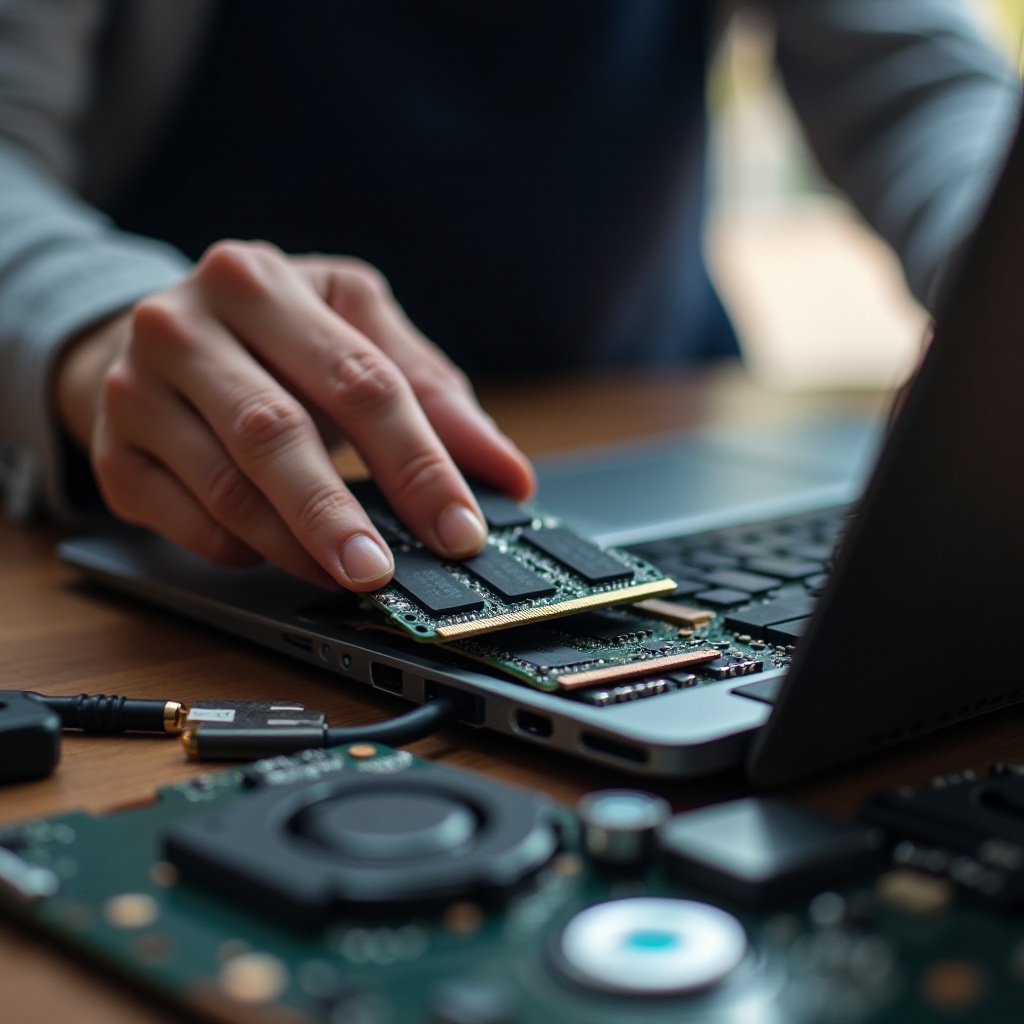
- Remove old RAM sticks from the slots.
- Insert new RAM sticks, ensuring a secure fit.
- Reassemble your laptop and boot it up to confirm the upgrade was successful.
Adding an SSD: Enhancing Storage and Speed
- Back up your data beforehand.
- Remove the laptop’s back cover.
- Replace the HDD with an SSD, using the same connectors.
- Secure the SSD, reattach the back cover, and restore data from your backup.
Improving Graphics: Is It Possible?
While integrated GPUs are less commonly upgradable, enclosing an external GPU can improve graphics performance. However, this option requires additional investment and might not be feasible for all users.
Despite best efforts, upgrades can occasionally run into issues. Here’s how to avoid some common pitfalls.
Common Mistakes in Laptop Upgrades and How to Avoid Them
Knowing common mistakes can help you avoid them and ensure a successful upgrade.
Choosing the Wrong Parts
Research is key to selecting compatible components. Using incorrect parts can lead to damage or unusable upgrades.
Ignoring Compatibility
Details matter—ensure upgrades match your laptop’s specifications. Consult manuals or manufacturer support if you’re unsure about any specifications.
Incorrect Installation Techniques
Improper installation can damage your laptop. Always follow detailed guides, and seek professional help if necessary.
With these insights, let’s recap everything we’ve learned so far about choosing and upgrading laptops.
Conclusion
Opting for a laptop that can be upgraded is a wise choice for anyone seeking long-term value. Upgradable laptops offer the flexibility to keep your device current, extend its usable lifespan, and avoid the expense of frequent replacements. Whether you’re adding RAM or upgrading to an SSD, ensuring your device meets evolving needs has never been easier. Invest in a laptop that grows with you, and enjoy the enhanced performance.
Frequently Asked Questions
Can I upgrade my laptop’s graphics card?
Most laptops do not support GPU upgrades due to space constraints. Consider using an external GPU enclosure.
How often should I upgrade my laptop components?
Asses your usage every 2-3 years to determine if upgrades like more RAM or storage are necessary.
Will upgrading my laptop void its warranty?
Upgrading can void your warranty depending on the manufacturer. Always check warranty terms or consult support before upgrading.