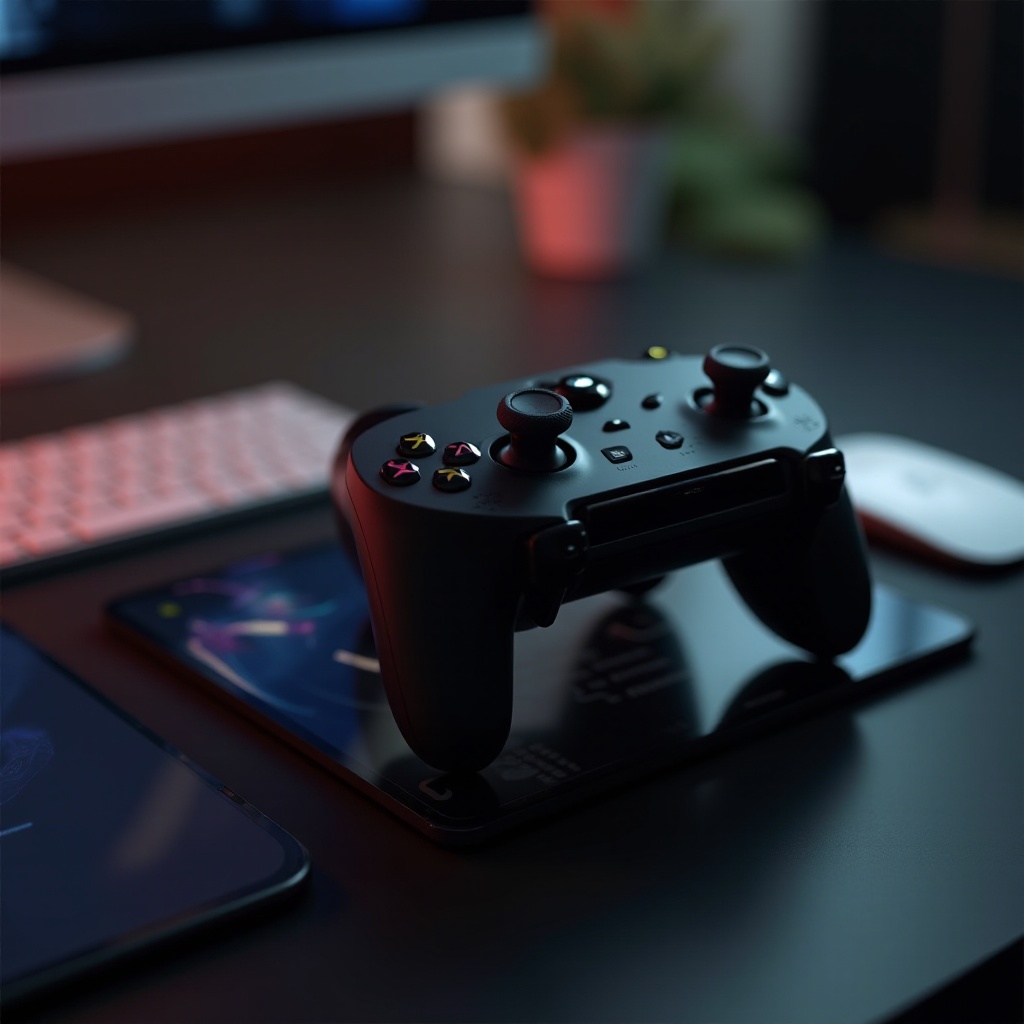
Pairing an Xbox controller to your iPad opens a world of gaming possibilities. As more apps and games optimize for controller use, connecting your devices is essential for a superior gaming experience. This guide provides everything you need to seamlessly pair your Xbox controller with an iPad.
Introduction
The Xbox controller is known for its ergonomic comfort and compatibility with various devices, including the iPad. If you want to enhance your gaming experience on an iPad, pairing it with an Xbox controller is a crucial step. Follow our thorough guide to successfully connect these devices and elevate your gaming sessions.
Understanding Device Compatibility
Before starting the pairing process, ensure that both your Xbox controller and iPad are compatible. Not all Xbox controllers and iPad models support pairing, so confirming this will save you time and effort in the long run.
Compatible Xbox Controller Models
To pair with an iPad, your Xbox controller must support Bluetooth. Common models equipped with this feature include the Xbox One S, Xbox One X, and Xbox Series S/X controllers. You can usually find the model number on the back of your controller or its packaging to verify compatibility.
iPad Models and iOS Requirement
Your iPad also needs to be compatible. Most models running iOS 13 or later support Xbox controllers. This includes the iPad Air (3rd generation and later), iPad Mini (5th generation and later), and all versions of the iPad Pro. To check your version, go to Settings > General > About on your iPad.
With compatibility confirmed, you’re ready to prepare your devices for pairing. This involves enabling necessary settings to ensure a smooth process.
Preparing Your Devices for Pairing
Ensuring that both the Xbox controller and iPad are ready for pairing will minimize potential issues. Follow these steps to configure your devices:
Enabling Bluetooth on iPad
- Open the Settings app on your iPad.
- Tap on Bluetooth.
- Make sure the Bluetooth toggle is switched on, setting your iPad to discoverable mode and ready for device pairing.
Updating Your iPad to the Latest iOS
- Go to Settings > General > Software Update.
- If an update is available, tap Download and Install.
Now that your devices are ready, let’s look at the steps needed to pair your Xbox controller with your iPad.
Step-by-Step Guide to Pairing Your Xbox Controller
Following these detailed steps will help you pair your Xbox controller with your iPad successfully:
Activating Pairing Mode on Xbox Controller
- Hold down the Xbox button on your controller until it lights up.
- Press and hold the pairing button on the top of the controller until the Xbox button starts flashing, signaling it is in pairing mode.
Connecting via iPad’s Bluetooth Settings
- In the iPad’s Bluetooth settings, look for ‘Xbox Wireless Controller’ in the list of devices.
- Tap on ‘Xbox Wireless Controller’ to connect. The Xbox button stopping its flash and remaining lit signifies a successful connection.
With your devices connected, let’s move on to resolving potential challenges you may face during this process.
Troubleshooting Common Issues
Despite careful preparation, you might encounter a few challenges. Here are solutions to common issues:
Xbox Controller Not Recognized by iPad
- Verify that your controller is in pairing mode by checking if the Xbox button is flashing.
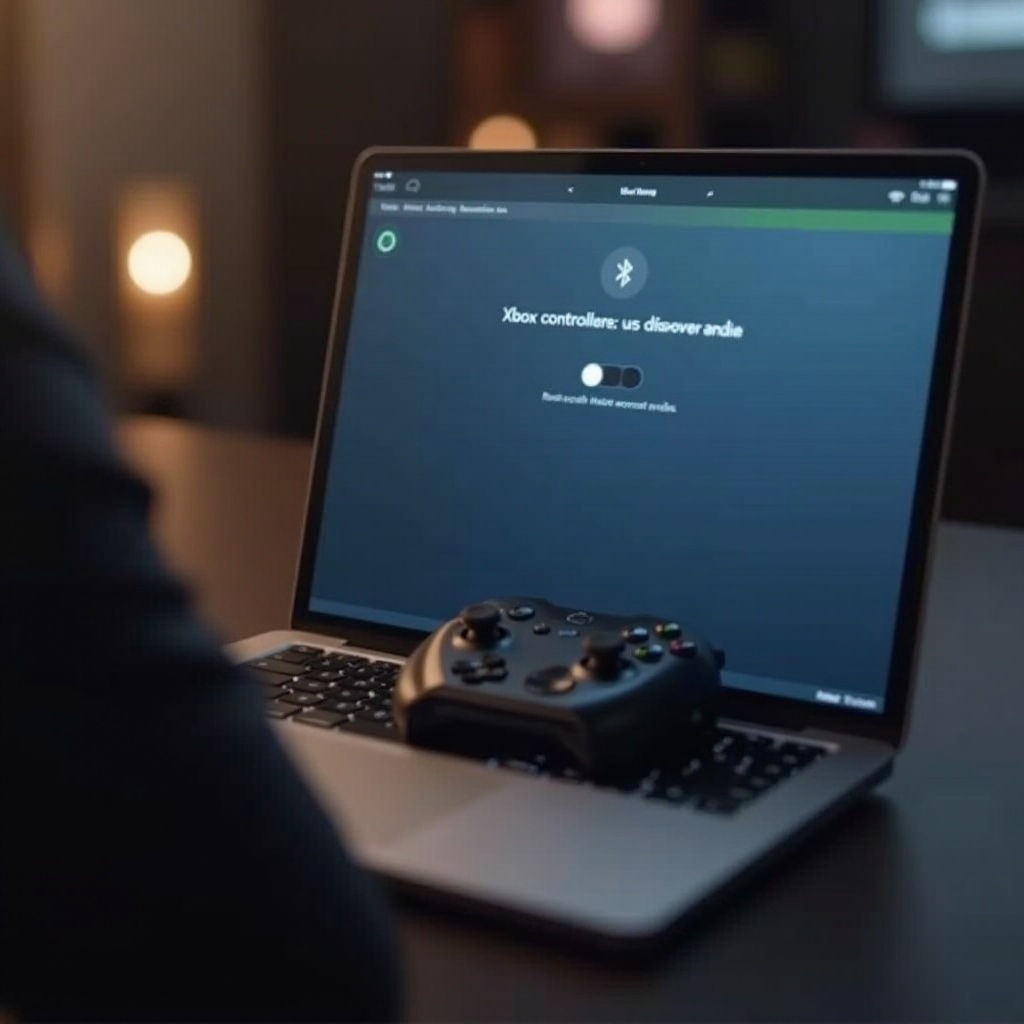
- Confirm that iPad’s Bluetooth is on and in discoverable mode.
Resolving Connection Drops
- Restart both the Xbox controller and your iPad and attempt to pair again.
- If issues persist, ‘forget’ the device under Bluetooth settings and reconnect.
These solutions should handle most problems, allowing for uninterrupted gameplay and enhanced enjoyment.
Enhancing Your Gaming Experience
Once successfully paired, your Xbox controller will deliver a better gaming experience on your iPad. Enjoy improved precision and comfort as you dive deeper into your gaming adventures.
Recommended iPad Games for Xbox Controllers
Explore games like ‘Call of Duty: Mobile,’ ‘Fortnite,’ and ‘Asphalt 9: Legends,’ which work wonderfully with Xbox controllers, offering smooth gameplay and better control.
Customizing Controller Settings
- Exciting customization options are available within many games, including sensitivity adjustments and button mapping.
- Check game settings to fine-tune controls to your liking.
These enhancements make your iPad gaming not only more engaging but also tailored to your preferences.
Conclusion
Connecting an Xbox controller to your iPad transforms your gaming experience, providing better control and enjoyment. Following this guide ensures a seamless pairing process, opening up new possibilities in mobile gaming. Embrace these steps, and elevate your gaming journey with greater ease and comfort today.
Frequently Asked Questions
Can I use any Xbox controller with my iPad?
Not all Xbox controllers are compatible. Ensure your controller supports Bluetooth. Xbox One S, Xbox One X, and Xbox Series S/X controllers typically do.
Why won’t my Xbox controller connect to my iPad?
Verify both devices are in pairing mode and your iPad’s Bluetooth is on. Restart devices or try ‘forgetting’ and re-pairing if issues persist.
Are there additional settings I should adjust for gaming?
Yes, many games offer customizable settings for controller sensitivity and button layout. Check in-game settings to adjust these to your liking.