
Introduction
Efficiently managing open tabs on your Samsung phone can significantly boost your device’s performance and enhance your browsing experience. Leaving too many tabs open may slow down your phone, consume more battery, and lead to a cluttered browsing environment. Learning how to effectively close these tabs will streamline your smartphone usage and keep your operations running smoothly.

Understanding Samsung’s Browser Interface
Samsung Internet is the default web browser on most Samsung phones, providing a clean, user-friendly interface. Familiarizing yourself with its layout and features is the first step in mastering tab management.
- Access the Browser: Locate and open the Samsung Internet app from your apps drawer.
- Interface Overview: The bottom menu bar offers icons for home, bookmarks, tabs, and settings, making navigation simple and intuitive.
By understanding the browser’s interface, you’re better prepared to efficiently manage your open tabs.
Step-by-Step Guide to Closing Tabs on Samsung Phones
Once you are comfortable with the browser’s interface, follow these steps to start closing tabs easily:
- Accessing the Tab View:
- Tap the ‘Tabs’ icon, usually found in the bottom menu bar.
-
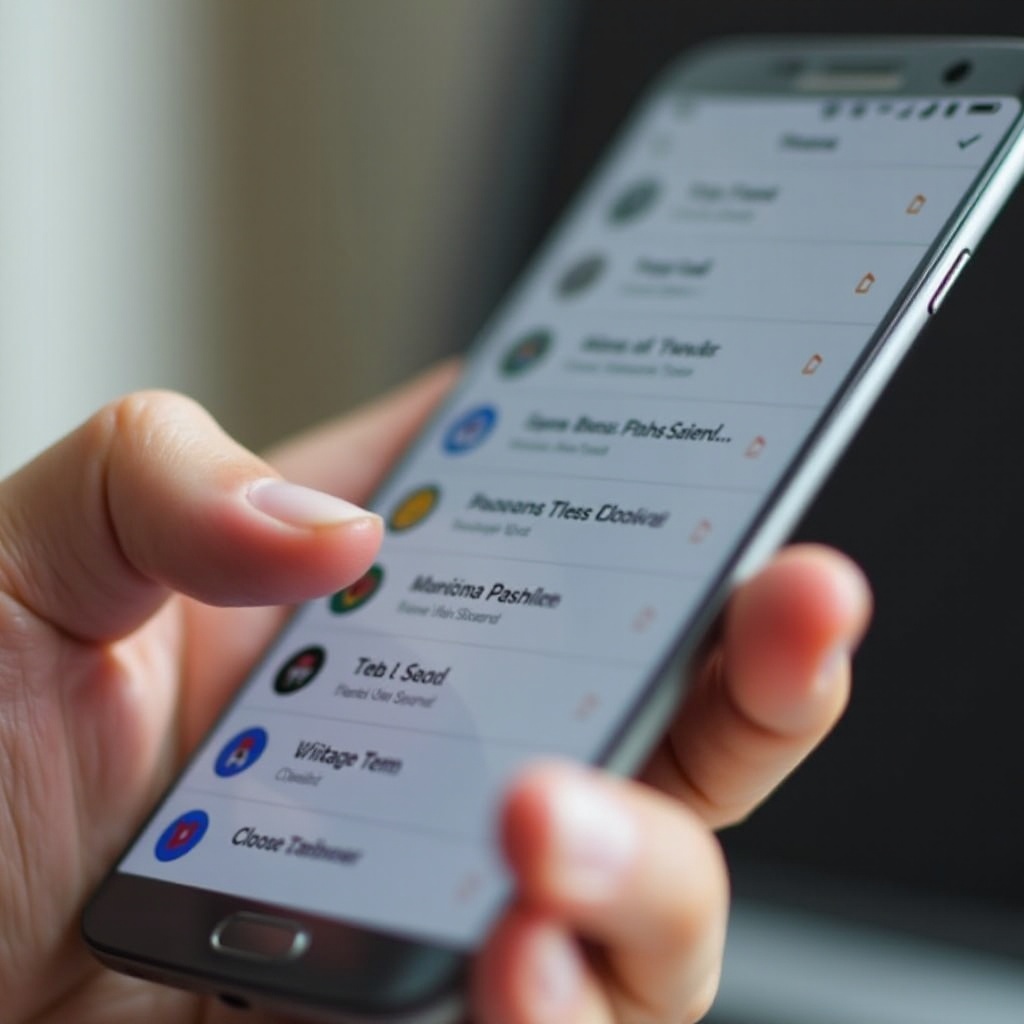
This will open a card-style view of all your open tabs.
-
Closing Individual Tabs:
- Swipe left or right on any tab card to close it.
-
Alternatively, tap the ‘X’ on the top corner of the tab card to remove it from the list.
-
Using the ‘Close All’ Feature:
- After accessing the tab view, find and tap the ‘Close All’ option, typically located at the bottom.
- Confirm your selection to effortlessly close all open tabs.
These steps provide a clear pathway to manage your tabs effectively. Let us delve into best practices to maintain an organized browsing experience.
Best Practices for Tab Management
Efficient tab management involves not just closing tabs but organizing your browsing activities to ensure optimal functionality.
- Organizing Your Tabs for Efficiency:
- Prioritize and keep only essential tabs open.
-
Regularly review and close tabs you no longer need.
-
Bookmarking Frequently Visited Sites:
- Use bookmarks to quickly access important sites without leaving them open.
-
To bookmark, tap the star icon in your browser’s address bar.
-
Benefits of Regular Tab Closure:
- Consistently closing tabs keeps your device’s memory usage low and enhances speed.
- Habitual tab maintenance ensures your browser remains streamlined and user-friendly.
Following these practices ensures your browsing remains efficient and your device performs optimally. Next, we’ll tackle common issues you might face when managing tabs.
Troubleshooting Common Issues
At times, you might face difficulties in closing tabs. Below are common issues and their solutions:
- What to Do If Tabs Won’t Close:
- Try restarting your browser or phone to refresh background processes.
-
Clear the cache by navigating to ‘Settings’ > ‘Privacy’ > ‘Clear Browsing Data’ in your browser.
-
Dealing with Frozen Tabs:
-
If a tab becomes unresponsive, force close the app via ‘Settings’ > ‘Apps’ > ‘Samsung Internet’ > ‘Force Stop.
-
Restoring Recently Closed Tabs:
- To recover accidentally closed tabs, go to the ‘History’ or look for ‘Recently closed’ options if available.
Addressing these situations will avoid disruptions and help maintain an orderly browsing experience. Let’s explore advanced features in Samsung’s browser that enhance management capabilities.

Exploring Advanced Features in Samsung Browsers
Samsung browsers are equipped with advanced features that further aid in managing tabs efficiently:
- Using Incognito Mode:
- Initiate a private browsing session by selecting ‘New incognito tab’ from the tab manager.
-
This mode prevents saving your browsing history and helps manage privacy.
-
Utilizing Tab Groups:
-
Group similar tabs to organize them better. Tap the ‘Group’ option available in the tab manager and select related tabs.
-
Samsung Dex Features for Enhanced Browsing:
- Samsung Dex provides a PC-like browsing experience on compatible devices, facilitating easier tab management and multitasking.
These features will significantly enhance your browsing efficiency and improve overall user convenience. Lastly, let us discuss strategies for maintaining browser performance.
Maintaining Optimal Browser Performance
For the best browsing experience, it’s crucial to keep your browser running smoothly:
- Impact of Tabs on Device Speed:
-
Keeping numerous tabs open can slow your device. Regular closure of tabs maintains speed and functionality.
-
Strategies for Efficient Browsing:
- Use browser extensions, like ad blockers, to prevent distractions and enhance speed.
- Explore the Samsung Internet add-ons for useful tools to optimize browsing.
By implementing these strategies, you’ll keep your Samsung phone operating efficiently, ensuring a responsive browsing experience. Let’s conclude our discussion.
Conclusion
Mastering tab management on your Samsung phone leads to a seamless and efficient browsing experience. Through understanding the browser interface, employing best practices, troubleshooting issues, and utilizing advanced features, you’ll maintain optimal performance and extend the functionality of your device.
Frequently Asked Questions
Can I automate tab closure on my Samsung phone?
Currently, Samsung’s browser doesn’t support automated tab closure. However, you can use third-party apps or perform manual checks regularly.
What should I do if tabs keep reopening after closing?
Make sure your browser and phone software are updated. A device restart can help clear issues causing tabs to reopen.
How do I find a tab I accidentally closed?
Check the browser’s history or use the ‘Recently closed tabs’ feature to recover tabs you accidentally closed.