Introduction
Enhancing the graphics performance of Dell laptops is often necessary for users who demand high-quality visuals and smooth operation for gaming or professional tasks. Utilizing an external graphics card, or eGPU, offers a significant upgrade to what built-in graphics processors can achieve. This setup is invaluable for users desiring desktop-level power on a laptop platform, renewing the functionality and longevity of their devices.
Understanding External Graphics Cards
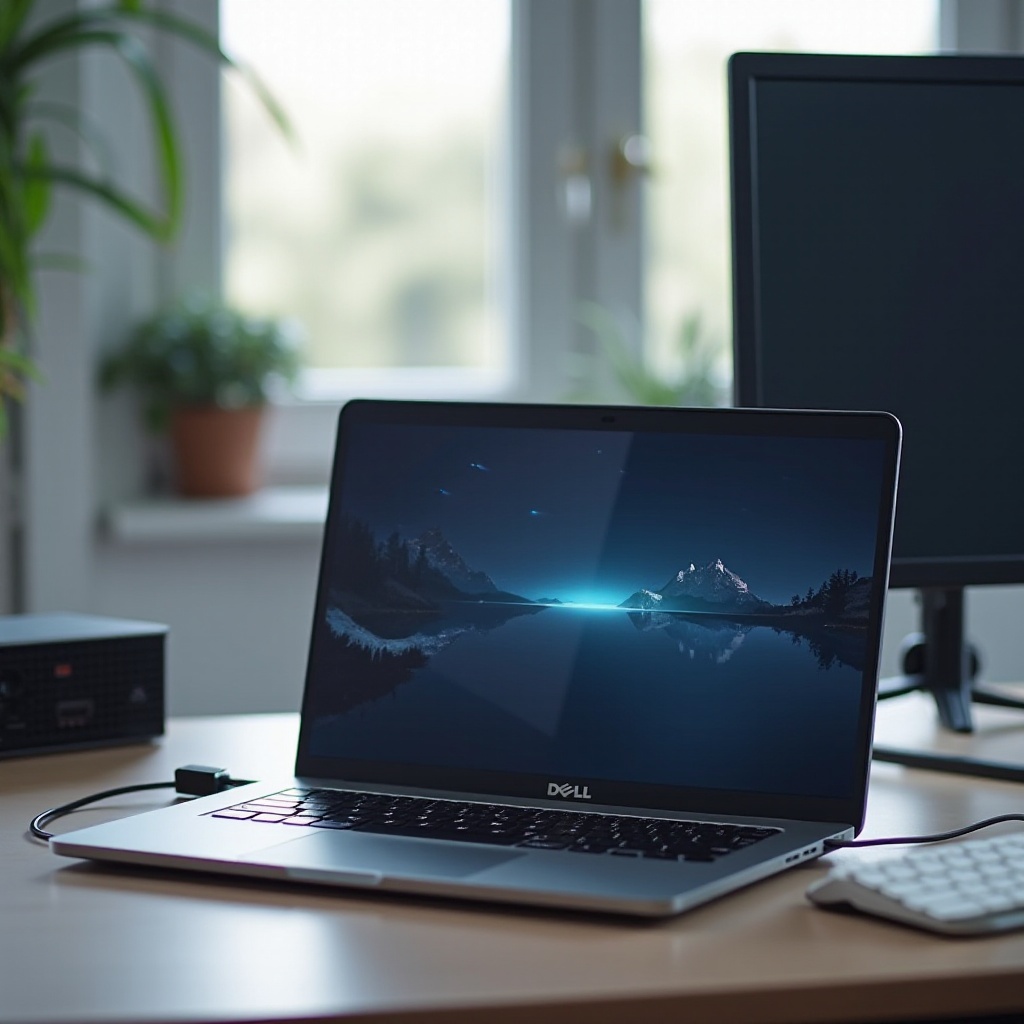
External graphics cards serve as a powerful complement to laptops, delivering enhanced graphical performance without the need for internal alterations. These devices connect externally through high-speed interfaces such as Thunderbolt 3, making it feasible for laptops to leverage the enhanced power of the eGPU’s dedicated graphics card. For Dell laptop users seeking such performance enhancements, understanding how eGPUs function and their benefits is essential.
These devices extend the life of your laptop, providing graphical performance that suits gaming, creative tasks, and other demanding applications. With a clear understanding of how eGPUs can integrate into your current setup, you can make informed decisions about whether it’s the right upgrade for your needs.
Benefits of External Graphics Cards for Dell Laptops
Adopting an eGPU for a Dell laptop translates to numerous advantages. First, it dramatically enhances gaming and multimedia experiences by increasing frame rates and enriching visual details. Applications that are graphics-intensive, such as 3D modeling software and the Adobe Suite, benefit from faster rendering times and increased efficiency. Moreover, this setup offers an easy way to future-proof your computing environment, allowing you to keep up with ever-evolving graphics technology.
Configuring your laptop to work with an eGPU requires mindful consideration of the model and configuration that best suits your needs. This decision impacts your laptop’s long-term usability and performance, ensuring the investment yields beneficial returns.
Selecting the Right eGPU for Your Dell Laptop
Compatibility Considerations
Before the procurement of an eGPU, verify your Dell laptop’s compatibility with eGPU connections, primarily Thunderbolt 3, which is necessary for most setups. Confirm your device’s specifications and check the power supply capabilities of the eGPU.
Important Features to Look For
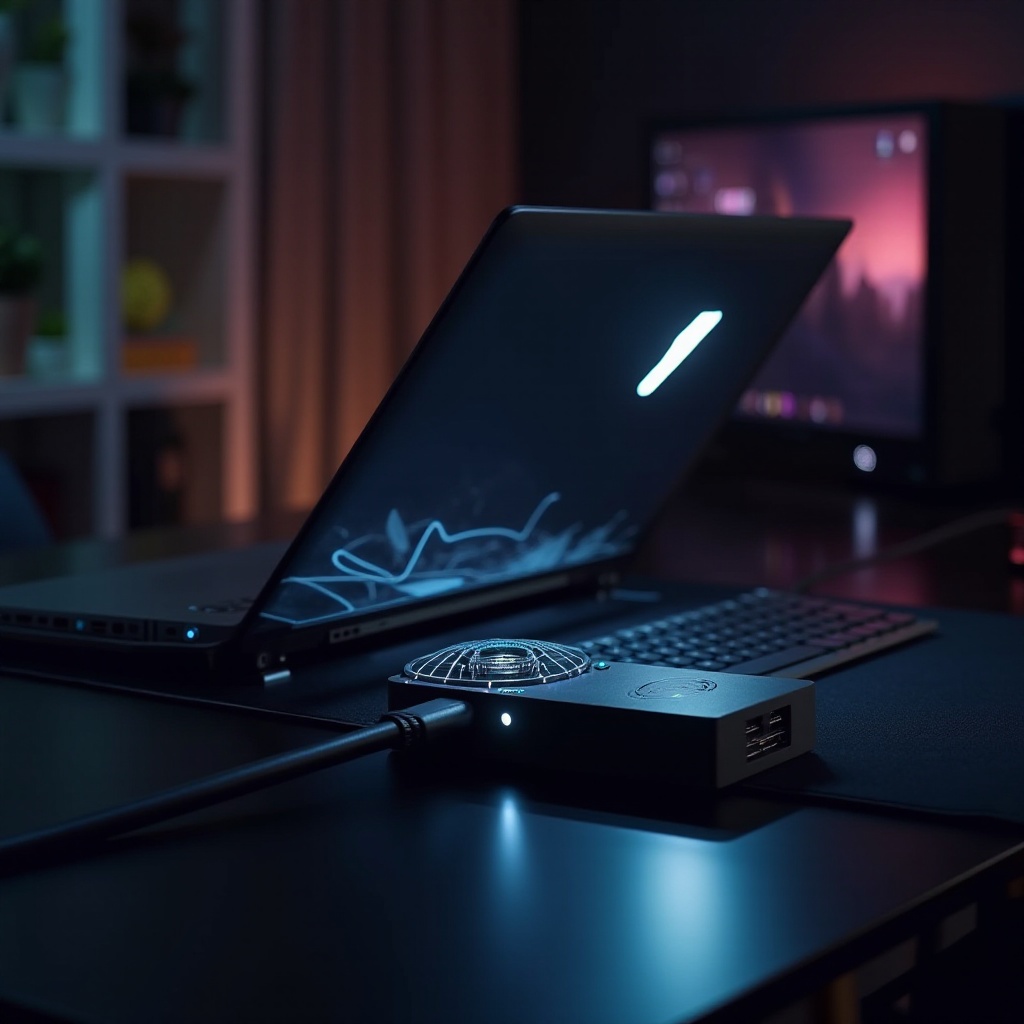
When selecting an eGPU, consider crucial aspects such as the size of the enclosure, fan noise, and the availability of additional ports. Compact size and quiet operation enhance the user experience, while additional USB ports can offer increased connectivity.
Top Recommended eGPU Models for Dell
-
Razer Core X: This model boasts wide compatibility and a spacious interior to accommodate most graphics cards, offering great flexibility.
-
AORUS Gaming Box: Known for portability without sacrificing performance, this compact system is suitable for mobile power users.
-
Sonnet eGFX Breakaway Box: An affordable choice, providing solid performance for mid-range needs suitable for budget-conscious buyers.
A tailored eGPU choice ensures that the device bolsters rather than burdens your Dell laptop, achieving the desired performance improvements and seamlessly integrating with existing setups.
Setting Up Your External Graphics Card
Preparing Your Laptop
- Confirm the inclusion of all necessary cables and components with your eGPU purchase.
- Ensure all laptop drivers and operating systems are current to support eGPU functionality.
Setting up an external graphics card involves bridging the laptop and eGPU effectively, allowing users to modify graphics settings and accommodate diverse professional and leisure needs.
Installation Process
- Connect the eGPU to your Dell laptop using the appropriate Thunderbolt 3 cable.
- Power the eGPU and laptop to begin the initialization process.
- Acknowledge any requested permissions from your operating system to establish safe and working access.
- Install accompanying eGPU drivers or software as required.
Troubleshooting Common Issues
- Should the system fail to recognize the eGPU, ensure secure cable connections and correct software installations.
- Update any relevant BIOS and Thunderbolt firmware if persistent issues occur.
- Always consult with the eGPU manufacturer’s troubleshooting guide for additional support.
A seamless setup can maximize the benefits a high-performing eGPU brings to your Dell laptop, offering improved functionality for gaming and professional endeavors alike.
Optimizing Performance of Your eGPU
Adjusting Graphics Settings
To enhance performance, adjust the graphics settings to utilize the eGPU’s full potential. Depending on usage, increase graphics details and resolutions to match performance needs without compromising speed and responsiveness.
Ensuring Efficient Thermal Management
eGPUs generate significant heat, necessitating proper airflow and cooling to prevent thermal throttling. Ensure enclosures are optimized for cooling or employ supplementary cooling solutions when necessary.
Keeping Drivers Updated
Consistent updates for both your laptop and eGPU drivers are vital. These updates include crucial bug fixes and optimizations that maintain optimal performance, vital for ensuring hassle-free operation.
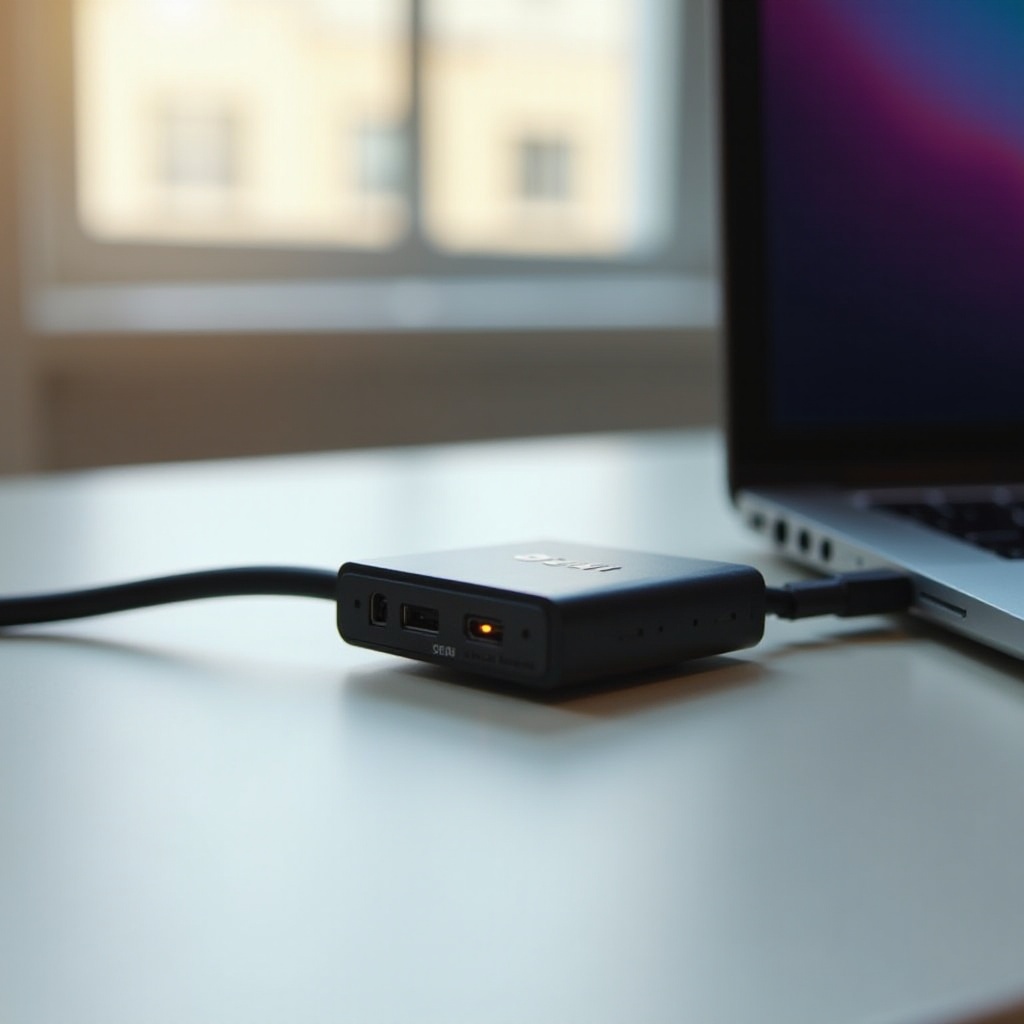
Conclusion
Investing in an external graphics card can significantly enhance the performance of a Dell laptop, offering substantial improvements in graphics-intensive tasks. By selecting the right eGPU, Following the installation steps carefully, and optimizing its performance, users can unlock capabilities in their laptops previously constrained by integrated graphics solutions. This investment offers broader scope, ensuring a satisfying and efficient computing experience across numerous applications.
Frequently Asked Questions
Can any Dell laptop use an external graphics card?
No, only Dell laptops with a Thunderbolt 3 or similar interface and compatible firmware can effectively utilize an eGPU.
How much does an external graphics card cost?
The cost varies depending on the graphics card and enclosure model, generally ranging from $300 to over $1,000.
Does using an eGPU affect battery life?
While eGPUs primarily rely on external power, they can increase the laptop’s power consumption, potentially impacting battery life if not plugged in.