
Introduction
Forgetting your smartphone password can be a frustrating experience, particularly when you urgently need to access vital information. Imagine being locked out of your Android device, cut off from indispensable contacts, documents, and apps. This situation is more common than one might think, but fortunately, there are several strategies you can employ to regain access. This guide provides detailed methods designed to help you unlock your Android phone safely and with minimal risk. We’ll explore options like utilizing your Google account, using Find My Device, accessing recovery mode, exploring Smart Lock features, and employing third-party software.
Understanding these approaches not only offers immediate relief but also equips you with knowledge to enhance your device security in the future. Let’s delve into each method.
Understanding Your Options
Before unlocking your phone, it’s crucial to understand why securing your device is imperative. Smartphones contain sensitive data that you wouldn’t want leaking into unauthorized hands. While passwords are essential for preventing unauthorized access, the problem arises if you forget them.
Unlocking a phone might seem merely inconvenient, but it also poses risks of data loss and breaches of privacy. Therefore, selecting the correct method to regain access is paramount to maintaining your data’s security.
Using Google Account Recovery
One of the simplest ways to unlock an Android phone is by leveraging Google Account recovery options. This solution utilizes the integrated Google services on your device.
Steps for Recovery
- Attempt Password Reset: Input an incorrect password multiple times until you see the ‘Forgot Password’ option.
- Google Account Sign-In: Tap the link and follow prompts to sign in with your Google Account linked to the device.
- Follow Instructions: Complete Google’s instructions to reset the password.
Benefits and Limitations
Using Google Account Recovery is advantageous due to its simplicity; most users already have an account set up on their device. However, it requires an internet connection and a pre-configured Google Account on your phone.
Unlocking with Find My Device
Google’s Find My Device is another helpful tool to access a locked phone.
Enabling Find My Device
This feature must be enabled beforehand, typically during initial device setup.
Step-by-Step Guide
- Visit Find My Device Website: Use another device to access the website.
- Select Your Device: Log in with your Google Account and choose the locked device.
- Choose the Lock Option: Select ‘Lock’, allowing you to set a temporary password.
This method offers an extra layer of control over a lost or locked phone, enabling remote password resets.
Accessing via Recovery Mode
If earlier methods fail, recovery mode is a viable alternative.
Entering Recovery Mode
- Power Off Your Device: Ensure the phone is fully powered down.
- Press Specific Keys: Hold the power and volume-up buttons until the manufacturer logo appears.
- Navigate the Menu: Use volume buttons to scroll and the power button to select.
Performing a Factory Reset
- Select Factory Reset: Opt for ‘Wipe Data/Factory Reset’.
- Confirm: Proceed with prompts to confirm, reverting your device to its initial state.
Consider this method a last resort as it erases all data.
Exploring Smart Lock Features
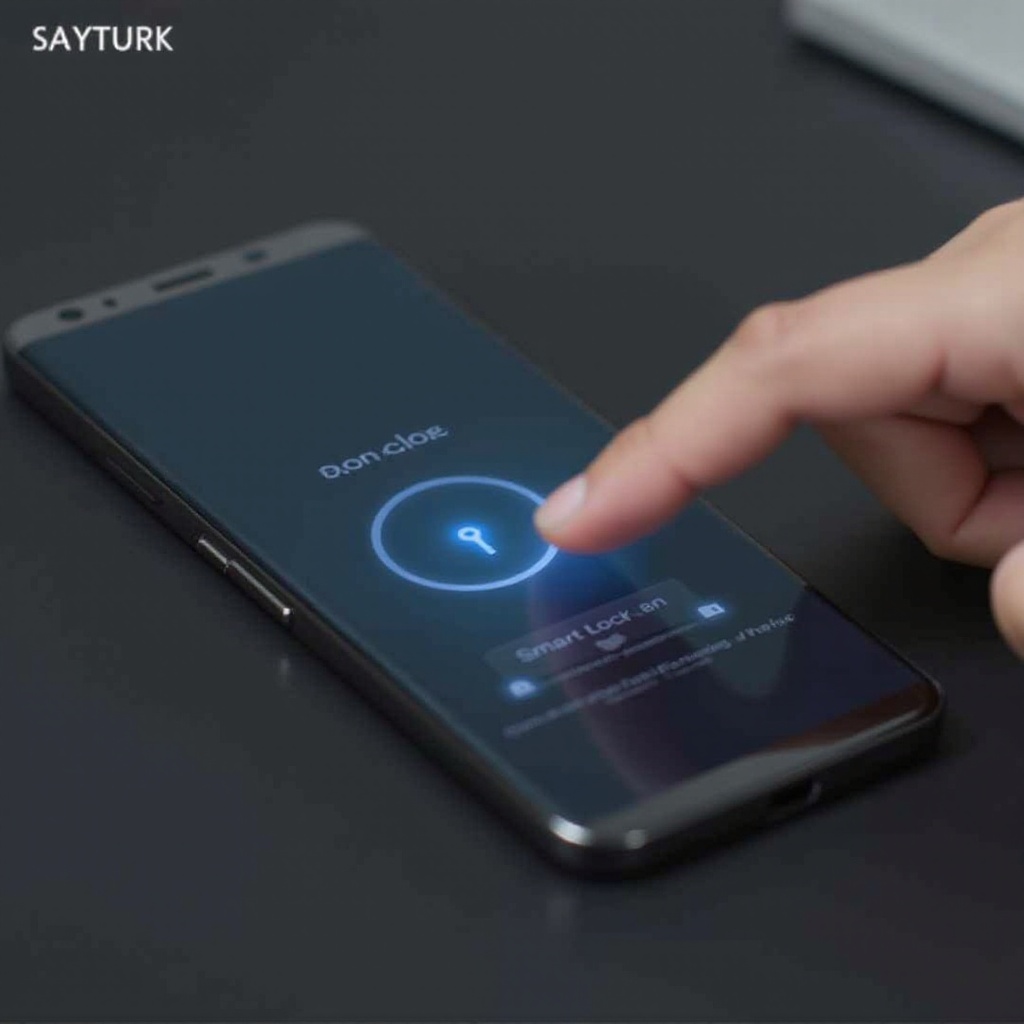
Smart Lock can prevent future lockouts by bypassing the lock screen in specific scenarios.
What is Smart Lock?
Smart Lock allows bypassing your lock screen in certain settings like trusted locations.
Setting up Smart Lock
- Navigate to Security Settings: Access your device settings, then select ‘Security & Location’.
- Enable Smart Lock: Follow the on-screen instructions to set trusted locations or devices.
Smart Lock reduces password recall by establishing trusted interactions with your phone.
Third-Party Software Solutions
When conventional methods are insufficient, third-party software can be an alternative.
Overview of Popular Tools
Programs like Dr.Fone and iMyFone LockWiper specialize in phone unlocking.
Step-by-Step Usage Guide
- Download the Software: Install your selected tool on a computer.
- Connect Your Device: Use a USB cable to link your phone to the computer.
- Follow Software Instructions: Run the software and abide by the instructions to unlock your device.
While effective, ensure the software’s legitimacy to avoid security issues.
Seeking Professional Help
For intricate cases above personal troubleshooting, professional assistance may be necessary.
When to Consider Professional Services
Seek a professional when the process becomes too complex or risks data loss.
Selecting a Reliable Provider
- Check Credentials: Verify the service provider’s certification and reviews.
- Inquire About Data Security: Ensure they adhere to strict data security standards.
Trust skilled technicians to maintain device integrity during unlocking.
Preventive Tips for the Future
Prevent lockouts with future proactive measures.
Creating a Secure Password
Craft strong, memorable passwords by:
– Combining letters, numbers, and symbols.
– Avoiding easily guessed information like birthdays.
Regularly Backing Up Your Data
Routine backups protect against data loss. Use Google Drive, external storage, or third-party services for secure backups.

Conclusion
Retrieving access to your locked Android phone can be achieved with methods from Google Account recovery to consulting experts. Implement preventive steps to avoid future lockouts, securing your data effectively. By being informed, you safeguard your tech investments efficiently.
Frequently Asked Questions
Can I recover data after a factory reset?
Typically, data recovery isn’t possible post-reset, highlighting the importance of regular backups.
Is it safe to use third-party unlocking software?
Choose reputable, well-reviewed software to minimize potential security risks.
How often should I back up my Android phone?
Aim for regular backups weekly or monthly based on usage levels to ensure data security.