Introduction
The Nintendo Switch Pro Controller is renowned for its ergonomic design and seamless performance, making it a popular choice among gamers. While it’s primarily designed for the Nintendo Switch console, many users opt to use it with their MacBooks for an enhanced gaming experience. Thanks to the compatibility of the macOS with Bluetooth devices, connecting your Switch Pro Controller to your MacBook can be done effortlessly. This guide will lead you through the steps to connect your controller, either wirelessly or wired, while also addressing configuration settings and troubleshooting tips.
Understanding Compatibility
Before connecting your Switch Pro Controller to a MacBook, it is essential to check if your device is compatible. The controller is mainly compatible with MacBooks running macOS Sierra (10.12) and newer versions. As Apple continues to update its operating systems, recent versions guarantee better compatibility and performance. Understanding this compatibility helps avoid potential connection issues and ensures that your gaming experience is impeccable.
Preparing Your Devices
Before diving into the connection process, let’s ensure both the MacBook and Switch Pro Controller are set up correctly. Here are few preparatory steps to follow:
- Check macOS Version: Confirm that your MacBook is running macOS Sierra (10.12) or later.
- Charge Your Controller: A fully charged controller prevents interruptions during the setup process.
Having both devices prepared now makes it easier to follow through with the connection methods.
Connecting Your Switch Pro Controller to MacBook via Bluetooth
Bluetooth offers a clean, wireless connection for gaming. Follow these steps to connect wirelessly:
- Enable Bluetooth on Your MacBook:
- Click on the Apple icon located in the top-left corner of your screen.
- Navigate to ‘System Preferences’ and select ‘Bluetooth.
-
Ensure the Bluetooth functionality is switched on.
-
Activating Pairing Mode on the Controller:
-
Press and hold down the Sync button on your Switch Pro Controller until the lights begin to flash. This indicates it is discoverable.
-
Successful Pairing and Common Issues:
- Once Bluetooth is active, locate ‘Pro Controller’ in the list of available devices and click ‘Pair.
- If connection issues arise, make sure the controller is in range and adequately charged. Simply turning Bluetooth off and on again may help fix connectivity problems.
Once completed, a Bluetooth connection allows for a clutter-free gaming environment. However, should issues persist, consider using a wired connection instead.
Wired Connection: Using a USB Cable
If you prefer a wired setup or cannot connect via Bluetooth, USB offers an efficient alternative:
- Required Cables and Adapters:
- For MacBooks with USB-C ports, you’ll need a USB-C to USB-A adapter.
-
For devices supporting USB-C directly, a USB-C to USB-C cable suffices.
-
Step-by-Step USB Setup:
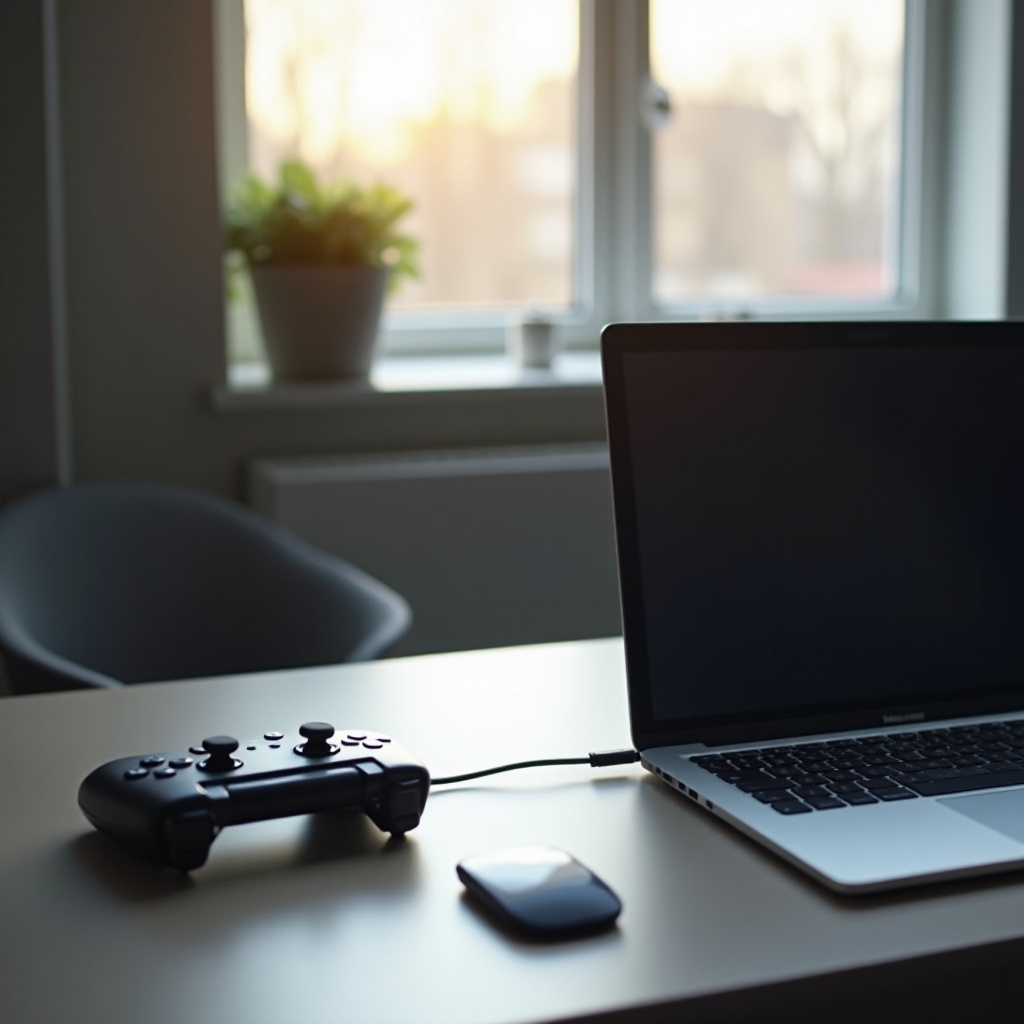
- Connect the Switch Pro Controller to your MacBook through the compatible cable.
- Your MacBook should automatically detect and connect to the controller.
A wired connection can occasionally provide better performance with reduced latency, making it a preferred choice for competitive or high-demand gaming sessions.
Configuring Controller Settings on macOS
After establishing a connection with your controller, configure your settings for optimum performance:
- Accessing and Modifying System Preferences:
- From the Apple menu, access ‘System Preferences’.
-
If available, click ‘Game Controllers’. Alternatively, consider using third-party software like ‘ControllerMate’ to customize settings.
-
Recommended Third-Party Software for Customization:
- Use applications like ‘OpenEmu’ to further refine controller configurations and ensure a more tailored gaming experience.
Adjusting these settings ensures your controller performs consistently across different games and platforms.
Testing Your Connection with Games
With your controller connected, verify its functionality within your games:
- Verifying Controller Functionality:
-
Open a game that supports controllers and test all the buttons and joysticks to confirm responsive control.
-
Optimizing Gameplay Experience:
- Adjust in-game settings if necessary, tweaking control sensitivity and button mapping for a more comfortable fit with your gaming style.
Testing the connection guarantees everything operates smoothly, providing peace of mind and enhancing gaming pleasure.
Troubleshooting and Frequent Issues
At times, you may experience challenges with the connection. Here are ways to tackle common issues:
- Connection Problems:
- Double-check both the Bluetooth and USB connections.
-
Ensure that other Bluetooth devices are not causing interference.
-
Performance Delays:
- Verify that your macOS is updated to the latest version.
- Restart your MacBook if the controller’s performance seems subpar.
Addressing these typical issues maximizes your controller’s reliability and ensures a fluid gaming experience.
Conclusion
By now, you should have a firm understanding of how to connect your Switch Pro Controller to a MacBook effortlessly, either through wireless Bluetooth or a reliable USB connection. Ensuring proper preparation and configuration of your devices drastically improves the overall experience. Continue testing different settings to find what suits your preferences best, and enjoy your gaming.
Frequently Asked Questions
Can I connect multiple Switch Pro Controllers to a single MacBook?
Yes, you can pair multiple controllers to a MacBook, primarily via Bluetooth, to enjoy multiplayer gaming sessions.
What should I do if my controller isn’t recognized by my MacBook?
Ensure your controller is in pairing mode and the MacBook’s Bluetooth is turned on. Resetting the Bluetooth module on the MacBook may also help.
Is it possible to use the Switch Pro Controller with other devices on macOS?
Absolutely, the controller can connect to other compatible macOS devices like iPads or iPhones as long as they have Bluetooth capabilities.